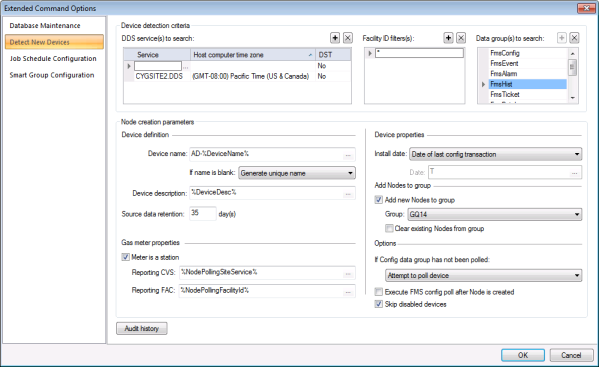
Use the Detect New Devices page of the Extended Command Options dialog box to configure options for Detect New Devices commands. The specified options determine the criteria and properties utilized by the Detect New Devices command to automatically create new device Nodes.
Note: The definition of the command resides in FMS, but you can also use CygNet Explorer (MSS service) to schedule this command. Scheduling a Detect New Devices command in the MSS will ensure that new devices added to the system are detected periodically and new Nodes are created automatically. See Scheduling FMS Command Tasks in the MSS for more information.
You must have proper security authorization to configure Detect New Devices options. See FMS Security (and CMDSYS security event) for information about configuring security access to extended command options.
See Running Detect New Devices Commands for more information about running the configured command in FMS Explorer.
See Detect New Devices for more information about additional options for using the command.
Detect New Devices commands are set up to automatically detect new devices in your FMS system and create FMS Nodes, utilizing specified device detection criteria and Node creation parameters.
Detect New Devices commands utilize specified device detection criteria to determine what devices are "new" to FMS and then use the configured Node creation parameters to automatically find new devices and create Nodes for them in the FMS system.
New Nodes will be automatically created by applying the Node creation parameters defined in the bottom pane to the device detection criteria from the top pane.
Use the following steps to configure device detection criteria and Node creation parameters for FMS Detect New Devices commands.
Device detection criteria are configured in the top section of the pane, and include the DDS service(s) to search, facility filters, and data group(s) to search. These criteria contain user-supplied properties defining the device(s) that will result from running the Detect New Devices command. Each of the three detection criteria are applied in conjunction.

Device detection criteria are described in the following table.
| Criteria | Description |
|---|---|
|
DDS service(s) |
To specify service(s) to search for devices, click the 'plus' button beside DDS service(s) and specify the service name, host computer time zone, and daylight saving time status for each service you want to include. Selection of multiple services is supported. To remove a DDS service from the list, click to select it and then click the 'X' button. Repeat as required for additional services. Each service selected must have the service name, time zone, and daylight saving time status specified as listed below. |
|
Service |
Type in the name of a Service or click ... to select a service from the list of available services. All services to search do not need to be on the same domain. To specify service(s) from a Site.Service located on a different domain, type [XXXX] (in brackets), where XXXX is the name of the domain, followed by the name of the FMS Site.Service in which you wish to search, i.e. type [Domain]Site.Service instead of Site.Service. |
|
Host computer time zone |
Select the corresponding Host computer time zone for the selected service, from the options in the drop-down menu. Drop-down options are available based on the defined time zones contained in the CygNetTimeZones.xml file located in the CygNet\Services\ARS folder on your host server. If time zone is not specified by the facility, this selection will be used to define the time zone for the created Node. See CygNetTimeZones.xml File for more information. |
|
DST |
Select the corresponding DST (daylight saving time) value for the selected service. Options are as follows.
See Daylight Saving Time for more information. |
|
Facility ID filter(s) |
To search for devices using Facility IDs as a criteria, click the plus button beside Facility ID filter(s). Type in a partial name, in conjunction with wildcard(s), to use as a search criteria. Definition of multiple filters (maximum of 25) is supported. Wildcard values * (multiple character) and ? (single character) are supported. Default value is * (all devices). |
|
Data group(s) |
To search for devices using the presence of specified data group(s) as a criteria, click the 'X' and 'plus' buttons beside Data group(s) to refine the list of data group names from the list of available options. Selection of multiple data groups is supported. Default value is all data groups. See EFM Data Groups in the Devices section for more information. |
Node creation parameters are configured in the bottom section of the pane, and contain the parameters used to create new FMS Nodes according to the properties and conditions specified. These parameters contain user-supplied properties defining the Node(s) that will be created as a result of running the Detect New Devices command. All of the conditions and parameters are applied in conjunction.
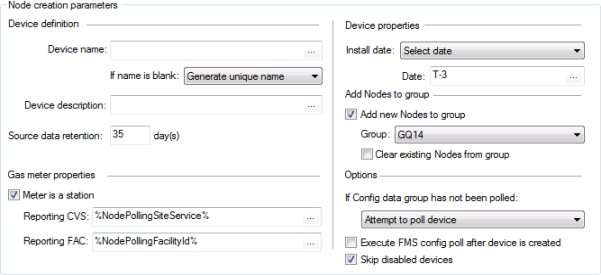
Node creation parameters are described in the following table.
| Parameter | Description |
|---|---|
| Device definition | |
|
Specify a name for the device Node that will be created. Type in a free-form Name for the device Node (if only a single Node will be created), or click ... to access the Select Token dialog box to use tokens &/or text to specify how to create the device Node names. See Defining New Node Names or Descriptions after this table for more information. Valid characters (maximum of 20) are as follows. A-Z, a-z, 0-9, . (period), #, $, &, (, ), +, -, \, /, :, <, >, =, @, [, ], ^, {, }, _ (underscore), !, ~ (tilde). Spaces are acceptable, when they are not leading or trailing. This parameter is required. |
|
|
If name is blank |
Select an action from the drop-down menu to use if the device name is invalid. Options are as follows.
|
|
Specify a description for the device Node that will be created. Type in a free-form Description for the device Node, or click ... to access the Select Token dialog box to use tokens &/or text to specify how to create the device Node descriptions. See Defining New Node Names or Descriptions after this table for more information. This parameter is optional. |
|
|
Source data retention |
Enter the maximum time, in number of days, that source data is retained on your flow computer. Retention on most flow computers is 35 days. Default value is 35 days. |
| Gas meter properties | |
|
Meter is a station |
For gas meters, click the check box to select/clear the option to indicate if each FMS meter created will also represent a station. If the Node is configured as a station meter (a Gas Meter Node set to also function as a station), you will also be be able to access and configure a reporting CVS and reporting FAC for the Node. Default value is selected. |
|
Reporting CVS |
If the meter is also a station, specify the Site.Service of the Current Value Service (CVS) reporting for the meter. To select a Current Value Service (CVS) to which to report data, type the Site.Service name into the text box, or click ... to access the Select Token dialog box, and select the token from the list. The available token category is Polling: General Properties. To use a token, select the option NodePollingSiteService and then click Insert Token to add it to the Token(s) text box. This parameter is optional. |
|
Reporting FAC |
If the meter is also a station, specify the facility reporting data for the meter. To select a facility to which to report data, type the facility name into the text box, or click ... to access the Select Token dialog box, and select the token from the list. The available token category is Polling: General Properties. To use a token, select the option NodePollingFacilityId and then click Insert Token to add it to the Token(s) text box. This parameter is optional. |
| Device properties | |
|
Install date |
Select how to determine the device installation date, in Device time (D), from the drop-down menu. Options are as follows.
|
|
Date |
If Select date is selected, specify the date to use as the device installation date. Type the date into the text box, or click ... to access the Select Date dialog box. |
| Add Nodes to group | |
|
Add new Nodes to group |
Click the check box to select/clear the option to automatically assign the new device Node to a group Node, and then define the group membership for the new device Node. |
|
Group |
If the Add new Nodes to group check box is selected, select the existing (general) group Node to which you want the new device Node added, from the options in the drop-down menu. |
|
Clear existing Nodes from group |
If the Add new Nodes to group check box is selected, click the check box to select/clear the option to automatically clear existing Nodes from the specified group before adding the new device Nodes. Note: Nodes cleared from this group are cleared for the entire span of the Node or group. |
| Options | |
|
If Config data group has not been polled: |
Select an action from the drop-down menu to use if the FMSConfig data group has not yet been polled for data. Options are as follows.
|
|
Execute FMS config poll after device is created |
Click the check box to select/clear the option to automatically run a Request Current Configuration command after the device Node is created. Note: The wait time limit (Detect New Devices command, Maximum wait time for poll parameter) does not apply to the configuration requests generated by this option; those requests are separate automatically triggered commands used as part of the device definition. |
|
Skip disabled devices |
Click the check box to select/clear the option to skip devices with a status of "disabled" during Node creation. Default value is cleared. Note: Enabled status for a device is stored in the Device Definition Service (DDS). |
You can use tokens, text, or both, to define a device name or description to be used for each newly created Node. A token is a text string enclosed by percent signs (%sampletext%), that represents a described value. The token will be replaced with the value it represents when creating the name or description for each new Node that is created. Tokens are used several places in CygNet Software to define dynamic text substitutions, as described for the specific usage.
Note: Maximum "Device name" character count is 20; names exceeding the limit will fail. Maximum "Device description" character count is 40; descriptions exceeding the limit will be truncated.
To Define a New Node Name or Description Using Tokens
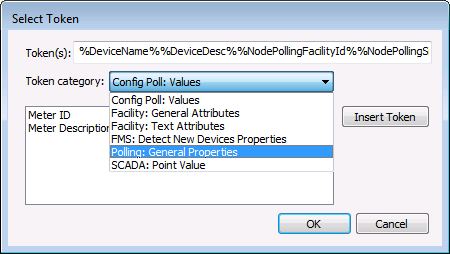
Note: These four category selections can be used in conjunction with one another. Text can be added with these options.
Note: Either of the following two category selections is mutually exclusive from other selections, and selecting either of these categories will clear previous selections from the Token(s) text box. Text cannot be added with these options.

|
|
|

